
Product drops, limited editions, restocks of popular items, and wholesale-priced products all have the same problem: one buyer, or one reseller with a script, can clear out your stock before real customers get a chance.
Shopify doesn't offer a simple "max 2 per customer" setting out of the box. But there are several ways to add one, depending on how strict you need it to be.
Why Limit Quantities?
- Fair access to limited stock, which protects your brand reputation during launches.
- Stopping resellers who buy in bulk to resell at a markup.
- Protecting margins on discounted or loss-leader products.
- Managing supply during shortages.
- Minimums: requiring at least a certain quantity for wholesale or bundles.
Option 1: Theme-Level Limits (Weakest)
You can set a max attribute on the quantity selector, or add JavaScript to stop customers adding more than a set number to the cart. It's quick, but easy to bypass: customers can add the product again from another page, edit the cart, or use the cart API directly. It's fine as a visual hint, not as protection.
Option 2: Shopify's Built-In Quantity Rules (B2B)
For B2B catalogs, Shopify supports quantity rules such as minimums, maximums and increments per product. These are designed for wholesale customers rather than general retail limits, and availability depends on your plan.
Option 3: Checkout Validation (Strongest)
The most reliable method is validation at checkout using Shopify Functions. When a customer tries to check out, the rule runs on Shopify's servers and blocks the order if it breaks your limits, no matter how the items got into the cart. This is how dedicated apps and custom solutions enforce limits properly.
Option 4: Per-Customer Limits Over Time
Sometimes the limit isn't per order but per customer: "max 2 per customer, ever" or "max 5 per month". That requires checking previous orders for the same customer or email, which means the customer needs to be identified, usually by requiring login or checking the email at checkout.
The Easy Way: Use an App
Our app Limitly was built for exactly this. It has an IF/THEN rules engine with 30+ conditions, so you can set minimum and maximum quantities and show clear messages that explain the limit to customers, instead of confusing errors. For high-stakes launches where limits must be enforced at checkout, a custom Shopify Function can be added on top.
Tips for a Good Customer Experience
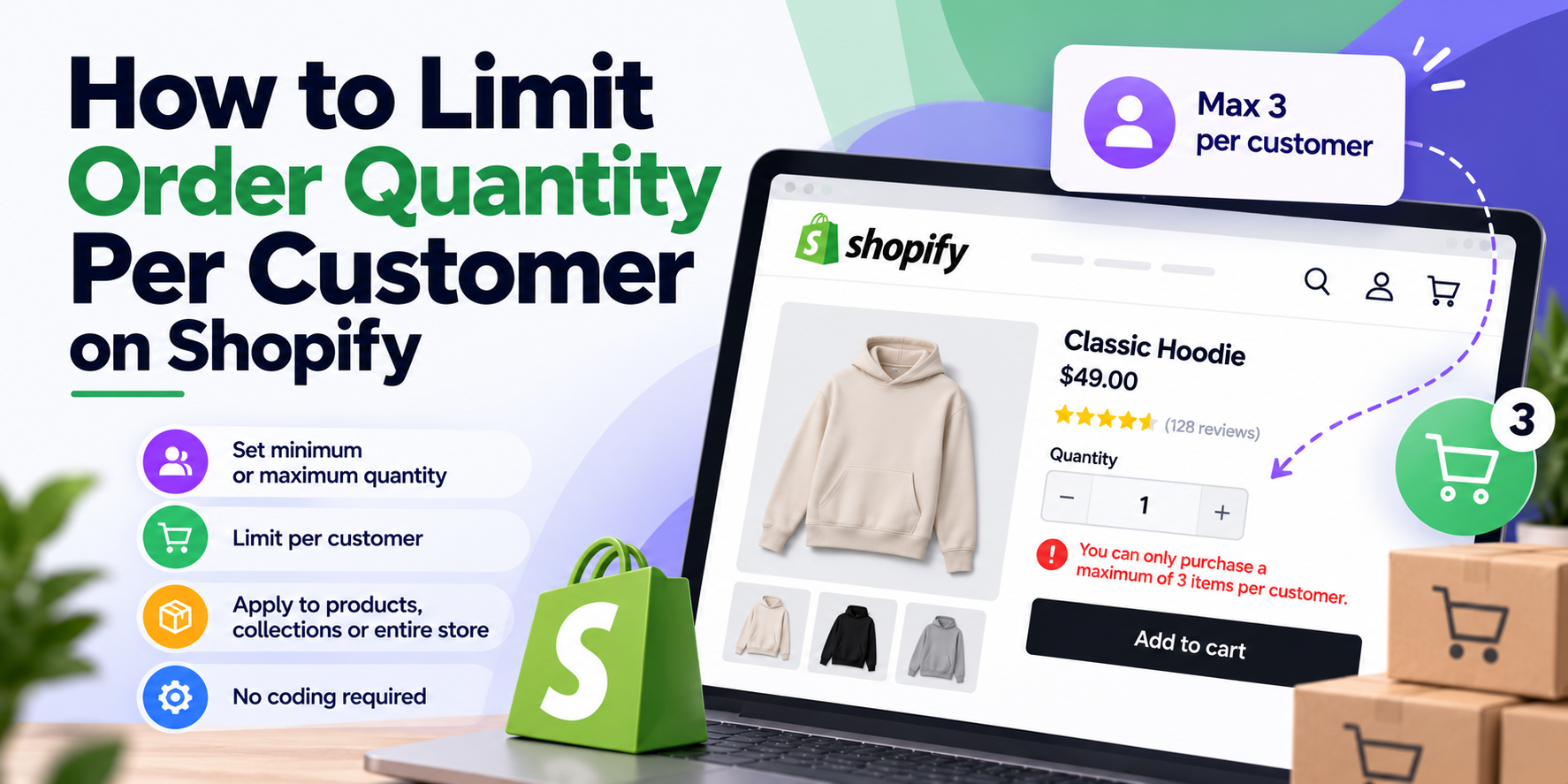
- Show the limit on the product page: "Limit 2 per customer". Surprises at checkout frustrate people.
- Use friendly error messages that say exactly what to change.
- Combine with bot protection for big drops, such as Shopify's checkout protections or queue tools.
- Test on mobile and with express checkouts like Shop Pay, Apple Pay and PayPal.
Frequently Asked Questions
Can customers get around quantity limits?
Theme-only limits are easy to bypass. Checkout validation with Shopify Functions is much harder to get around.
Can I limit by customer, not just per order?
Yes, but it needs order history checks and a way to identify the customer, such as login or email matching.
Do limits work with express checkout?
Checkout validation does. Theme-only limits often don't, which is another reason to validate at checkout.
Try Limitly for quantity rules on your store, or contact me if you need custom per-customer limits or rules for a big product launch.
Need a Shopify store built or improved?
Tell me what you need — I’ll respond within 24 hours with a realistic plan and quote.