
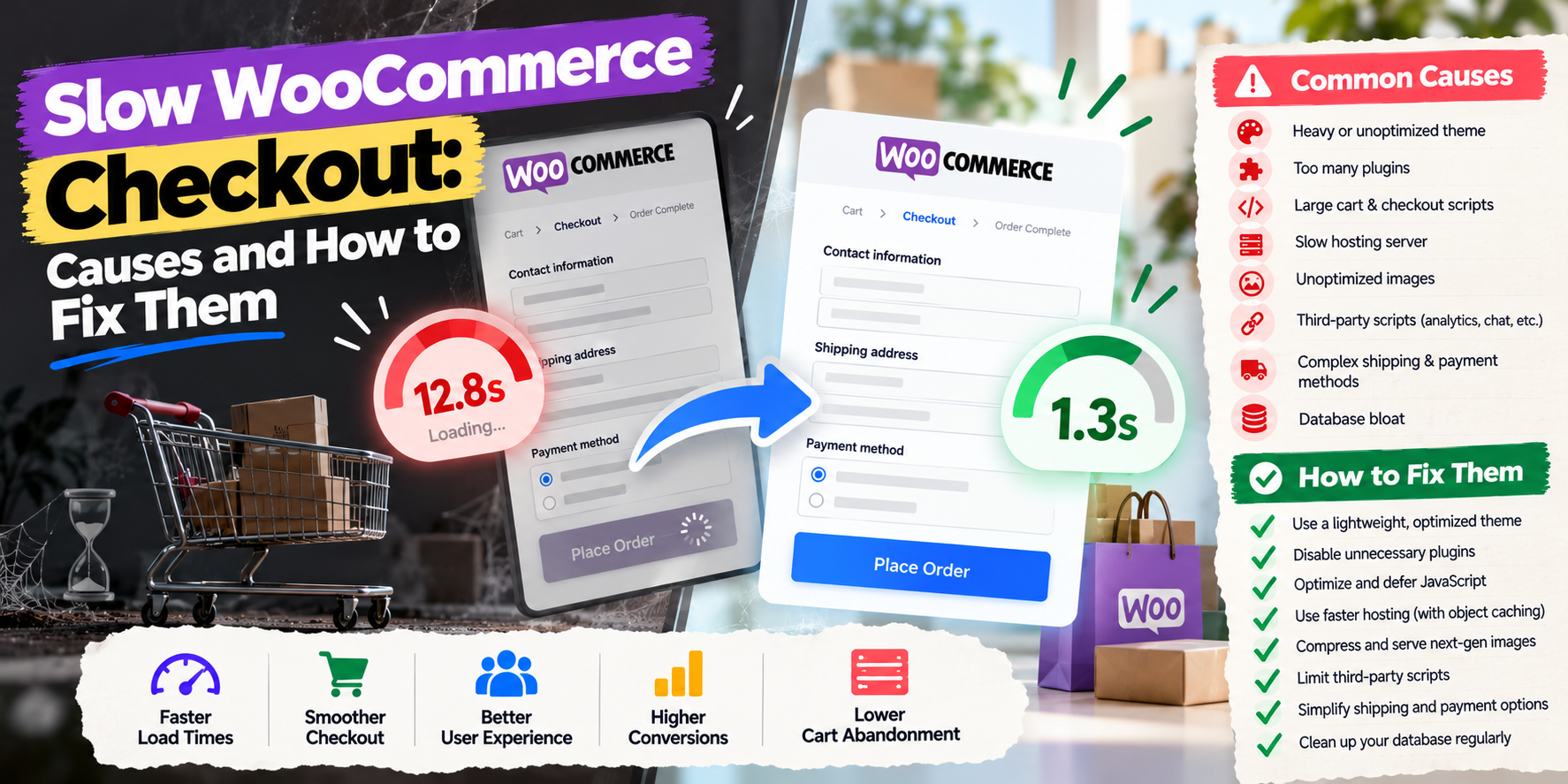
Customers who reach checkout have already decided to buy. If the page takes ages to load, or the "Place order" button spins for ten seconds, some of them leave. A slow WooCommerce checkout is one of the most expensive performance problems a store can have.
Checkout is also harder to speed up than other pages, because it can't simply be cached. Here's what usually causes the slowdown and how to fix it.
Why Checkout Is Different
Product and blog pages can be served from cache. Cart and checkout pages are personal to each customer, so WordPress and WooCommerce run fresh code and database queries every time. That means server speed, plugins and database health matter much more here.
Common Causes
1. Slow hosting
Cheap hosting with limited CPU and memory struggles with uncached pages. Checkout is where this shows most.
2. Too many checkout plugins
Upsell, checkout field, gift message, delivery date and payment fee plugins all add processing to every checkout update.
3. Slow shipping rate calculations
Live carrier rates (UPS, FedEx, Australia Post, Royal Mail APIs) can add seconds each time the address or cart changes, especially if the carrier API is slow.
4. Payment gateway scripts
Multiple payment options each load their own scripts. Gateways you don't use, or old versions, slow down the page.
5. Cart fragments
WooCommerce's cart fragments feature updates the mini cart via AJAX, sometimes on every page. On busy sites, this adds load across the whole site.
6. Large or messy database
Years of orders, expired sessions, transients and leftover plugin data make queries slower. Large wp_options tables with autoloaded data are a frequent culprit.
7. Legacy order storage
Older stores may still store orders as WordPress posts. WooCommerce's High-Performance Order Storage (HPOS) uses dedicated tables and is faster at scale.
How to Fix It
- Measure first: use Query Monitor on a staging site to see which plugins and queries are slow.
- Upgrade hosting if the server is the bottleneck, ideally with object caching (Redis).
- Remove or replace heavy checkout plugins, and combine features where possible.
- Cache shipping rates or use table rates for common destinations instead of live API calls every time.
- Disable unused payment gateways and keep active ones updated.
- Limit cart fragments to pages that need them.
- Clean the database: expired sessions, transients and autoloaded options.
- Switch to HPOS after testing plugin compatibility.
- Consider the block-based checkout, which is WooCommerce's modern checkout experience, after checking plugin support.
Frequently Asked Questions
Can I cache the WooCommerce checkout?
No, full-page caching should be excluded from cart, checkout and account pages. Object caching can still help.
How fast should checkout be?
Aim for the checkout page to load in under 2 to 3 seconds and order placement to complete in a few seconds.
Is it time to move to Shopify?
Sometimes. If you're spending heavily on hosting and maintenance just to keep checkout fast, compare options in our platform comparison posts or ask for advice.
Want a faster WooCommerce checkout? I diagnose slow plugins, queries and hosting, and fix them without breaking your store. WordPress and WooCommerce services or get a free quote.
Ready to redesign?
Free 20-min consultation. Custom WordPress redesigns $750–$1,500. Training included. 7–14 day delivery.