
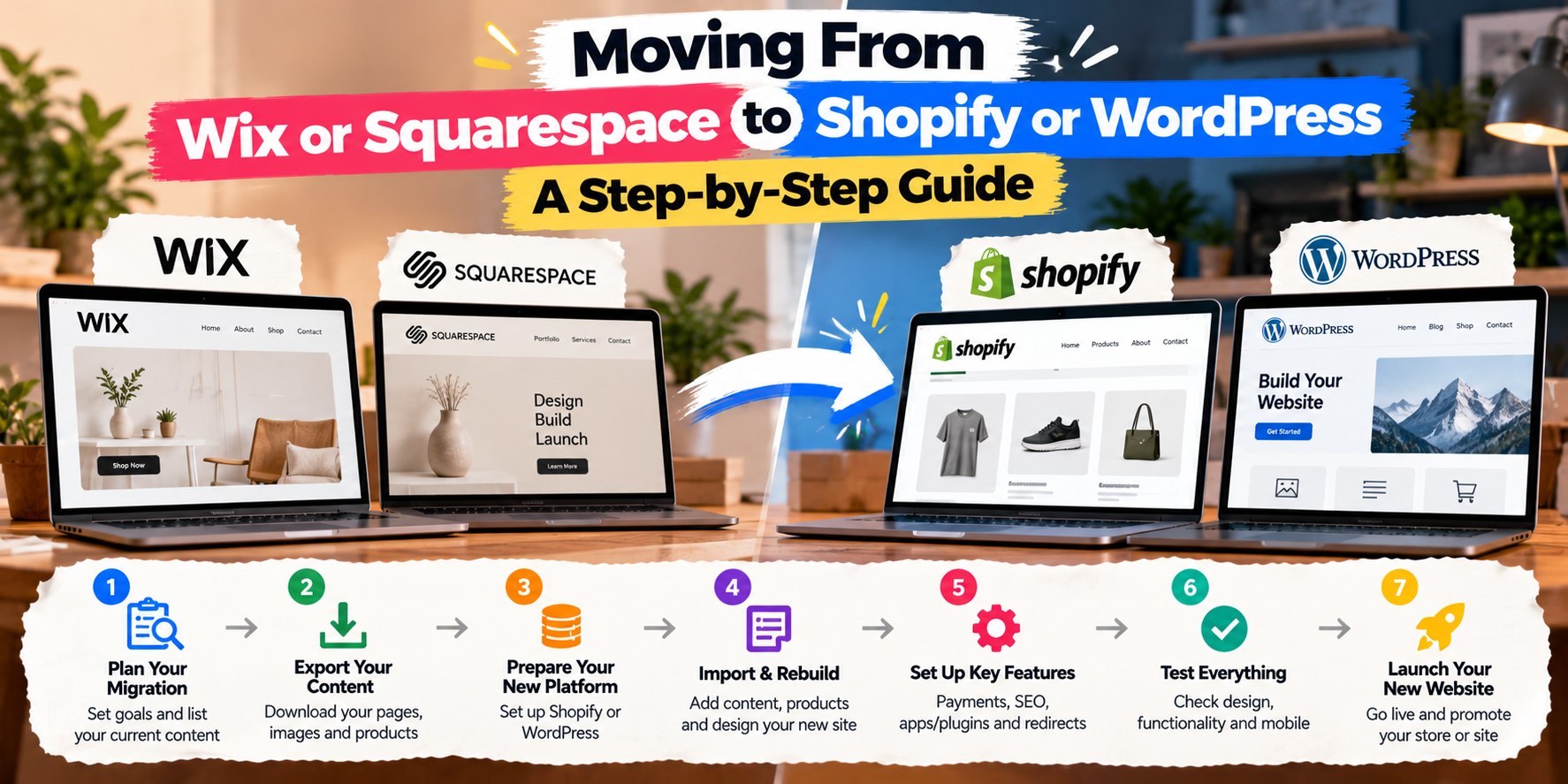
Wix and Squarespace are great for getting online quickly. But as businesses grow, many hit limits: slow pages, limited SEO control, ecommerce features that don't scale, or monthly costs for features they can't customise.
Moving to Shopify (for ecommerce) or WordPress (for content and service businesses) gives you more control. The key is migrating without losing the Google rankings you've built.
Signs You've Outgrown Your Platform
- You need features that apps or plugins can't add.
- Your site is slow, and you can't fix it.
- You want more control over SEO, URLs or structured data.
- Your online store needs better inventory, shipping or international selling.
- You want to own your site and content more fully.
Shopify or WordPress?
- Shopify: best if selling products is the core of your business.
- WordPress: best for service businesses, content-heavy sites, blogs and lead generation, with WooCommerce if you also sell products.
See Shopify vs WooCommerce for a deeper comparison.
Step 1: Audit Your Current Site
- List every page, blog post, product and collection.
- Export your URLs (from your sitemap) and note which pages get traffic in Google Search Console and Analytics.
- Download images, files and any content you'll need.
Step 2: Plan Your New Structure
Decide your new URLs. Where possible, keep URLs similar. Where they change (Wix and Squarespace often use different URL formats), plan a redirect for each one.
Step 3: Move Your Content
- Products: export to CSV and import into Shopify or WooCommerce, then check variants, images and descriptions.
- Blog posts: WordPress can import some exports directly. Otherwise, content is moved with tools or by hand for smaller sites.
- Customers: export and import customer lists, respecting marketing consent.
- SEO data: copy page titles and meta descriptions.
Step 4: Set Up 301 Redirects
This is the most important step for SEO. Every old URL should redirect permanently (301) to its new equivalent. Without redirects, Google sees broken pages and rankings drop. Shopify has a built-in URL redirect tool; WordPress uses plugins like Redirection or server rules.
Step 5: Design and Build
Use the move as a chance to improve: faster pages, clearer calls to action, better product pages and service pages that are built to generate leads.
Step 6: Test Before Switching
- Forms, checkout, payments and emails.
- Mobile layout and speed.
- Redirects: test your most important old URLs.
- Analytics and tracking.
Step 7: Launch and Monitor
- Point your domain to the new site.
- Submit your new sitemap in Google Search Console.
- Watch the Pages and Performance reports for errors over the following weeks.
- Fix any 404 errors with additional redirects.
Frequently Asked Questions
Will I lose my Google rankings?
A small temporary dip is common. With correct redirects and content, rankings usually recover and often improve thanks to better speed and structure.
Can I keep my domain name?
Yes. You can transfer the domain or just point it to your new site.
How long does a migration take?
Small sites can move in one to two weeks. Larger stores with many products take longer.
Ready to move off Wix or Squarespace? I handle the full migration, including redirects and SEO, so you don't lose what you've built. Get a free quote.
Got a project in mind?
Tell me what you need — I’ll respond within 24 hours with a realistic plan and timeline.